
Part A – Auto navigation topics from captions
Navigation topics (chapters) are time points with a name that let viewers jump to parts of the video. You can add them manually (see the video topics guide). Here we explain the Create navigation topics automatically from captions button on the video settings screen (edit video).
Where to find the button
- Open video settings (edit) for the desired video.
- Scroll to the Artificial intelligence (AI) section (below captions).
- A button with a sparkles icon appears: Create navigation topics automatically from captions – only when the conditions below are met.
Conditions for the button to appear and work
- The video is not YouTube-only (for videos uploaded to the system / supported sources).
- Transcription/captions are in ready status (same as for editing captions).
- Caption text exists that is rich enough to build chapters from.
- OpenRouter API key and model are configured in system settings (captions / AI area in system settings – see the system settings guide).
What happens when you click
- A modal opens with a short explanation and a checkbox for replace existing navigation topics.
- When checked – existing topics are deleted and replaced with new ones. When unchecked – new topics are added to the existing list (without manual deletion).
- Clicking Create navigation topics sends a request to the server. The system sends a sample of the captions (including timestamps) to the AI and considers the video length.
- The model returns a list of chapters (title + start time in seconds). The system validates that the structure is reasonable (coverage along the video, minimum number of chapters by length, etc.). If the response is invalid – an error message is shown; you can try again.
- On success – the page reloads and you will see the topics in the topics list / in the player.
How many chapters are created
Usually between 2 and 10 chapters, depending on video length and caption content. The system requires chapters that cover most of the timeline (not just the beginning). For very short videos – a smaller number may be created.
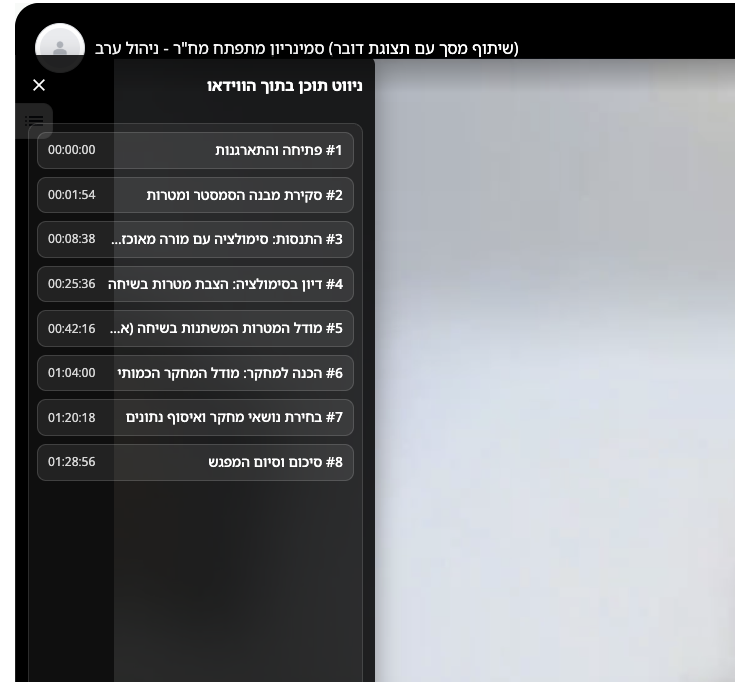
Content navigation and topics list – embed example
After topics are created, viewers open in-video content navigation from the player – a list of chapters with times and jump-to-time. This is available on the watch page and in embed mode (when the player is embedded on a site or in an LMS). Below is a screenshot from an embed view.
Topic markers on the progress bar and tooltip
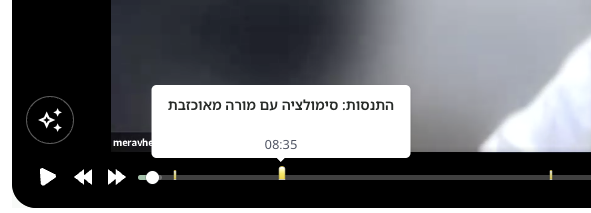
When navigation topics exist, markers (yellow bars) appear on the progress bar at each chapter's time. Hover over a marker – a tooltip opens with the topic name and start time, without pausing playback. Clicking the marker or the bar area jumps to the matching time (on the watch page and in embed, depending on device support).
Automatic background generation (sibling / video group)
When transcription is ready, the system sometimes tries to generate topics automatically for sibling videos (same upload group) that still have no topics – to save work when publishing a series of lessons. If there is no API key or generation fails, the action is skipped and logged on the server.
Part B – AI chat about the video
On the video watch page, below the description, a AI chat about the video block may appear. The assistant answers only from caption segments passed to it – if there is no information in the captions it should say so explicitly.
When the block appears
- Transcription is ready and a caption source suitable for AI chat exists.
- OpenRouter API key is configured in system settings (same as for auto navigation topics).
Sign-in
To send messages you must be signed in to the system. Guests see an explanation and a link to sign in.
How to use it
- Type a question in the text field (Enter to send; Shift+Enter for a new line).
- Click Send. A "thinking…" state appears until the answer arrives.
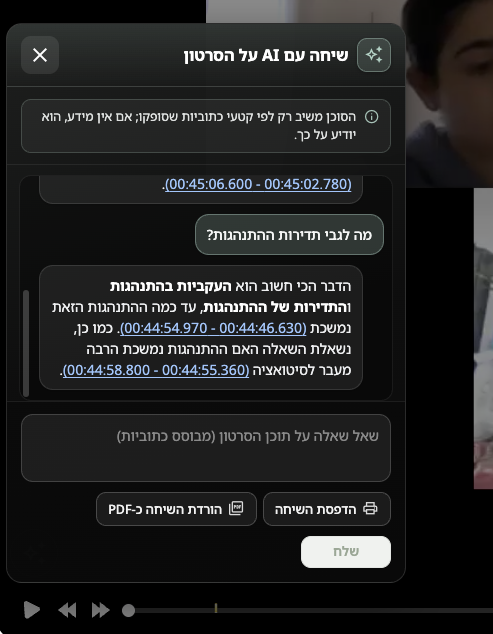
- In assistant replies, time ranges in parentheses may appear (from captions). Clicking a range or a numbered line can jump the player to the matching time (on desktop and supported devices).
- Print conversation – opens a print window with the chat in a readable format (you can save as PDF from the browser print menu).
- Download conversation as PDF – downloads a PDF generated on the server (same content as print, including RTL languages).
AI chat in embed mode
If the system administrator enabled Show AI chat button above the player in embed in advanced settings, a floating button appears on the player only in regular embed mode (not in reels mode). Clicking opens a panel with the same chat as on the watch page. Sign-in is required (or JWT in embed from Moodle – depending on your setup).
If print is blocked in the browser inside an iframe (e.g. Moodle block), try allowing pop-ups for the video site, or ask the Moodle administrator to allow pop-ups / allow-popups in the embed (depends on template and iframe sandbox).