
Overview
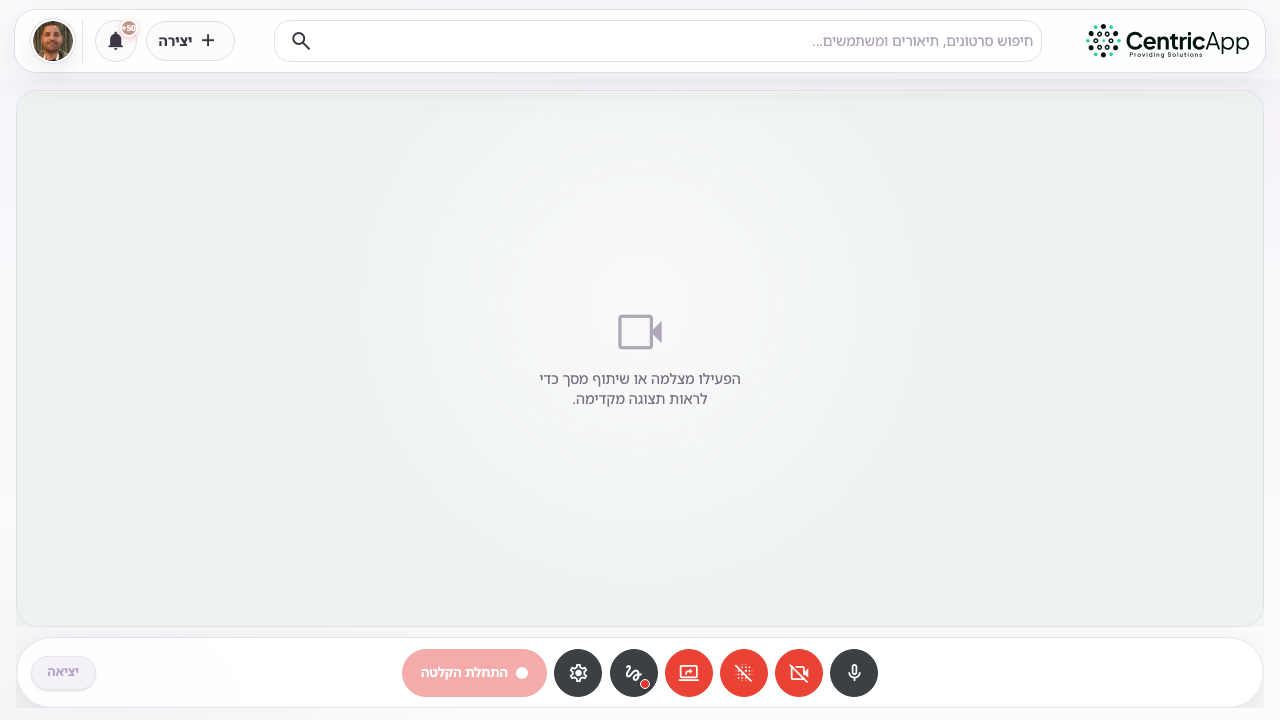
The Personal recording page lets you record the camera, screen share, or both together. When you stop, the video is saved automatically and appears under My videos. URL: /videos/record (for example https://dev.video/videos/record).
The feature is available only when recording is enabled in system settings, and only for users who are not viewers-only.
Opening the page
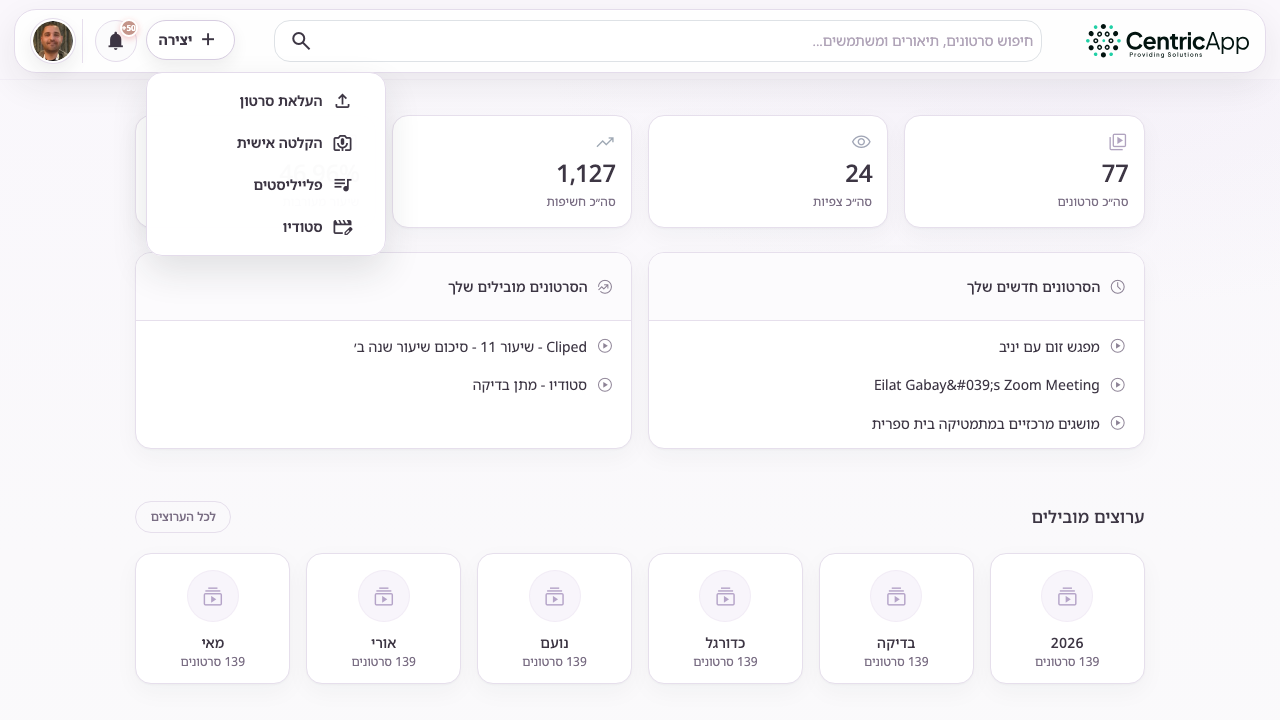
In the header, click + Create, then choose Personal recording. You can also open /videos/record directly.
Control dock
At the bottom of the page is a Meet-style dock with these controls:
- Microphone – mute/unmute, with a volume meter.
- Camera – turn the camera on or off.
- Background blur – blur the background behind the camera (when the camera is on).
- Screen share – choose a window or screen to record.
- Annotate screen – draw over the preview (see below).
- Settings – pick camera and microphone devices, and PiP camera corner when both sources are active.
- Start recording / Stop recording – start, pause/resume, and stop with save.
- Exit – return to My videos without saving a new recording.
Camera and screen share together
You can enable camera and screen share at the same time. Usually the screen is large and the camera appears as a round PiP. In Settings you can choose the camera corner. When you stop, the system combines both streams into one video.
On-screen annotation (pen)
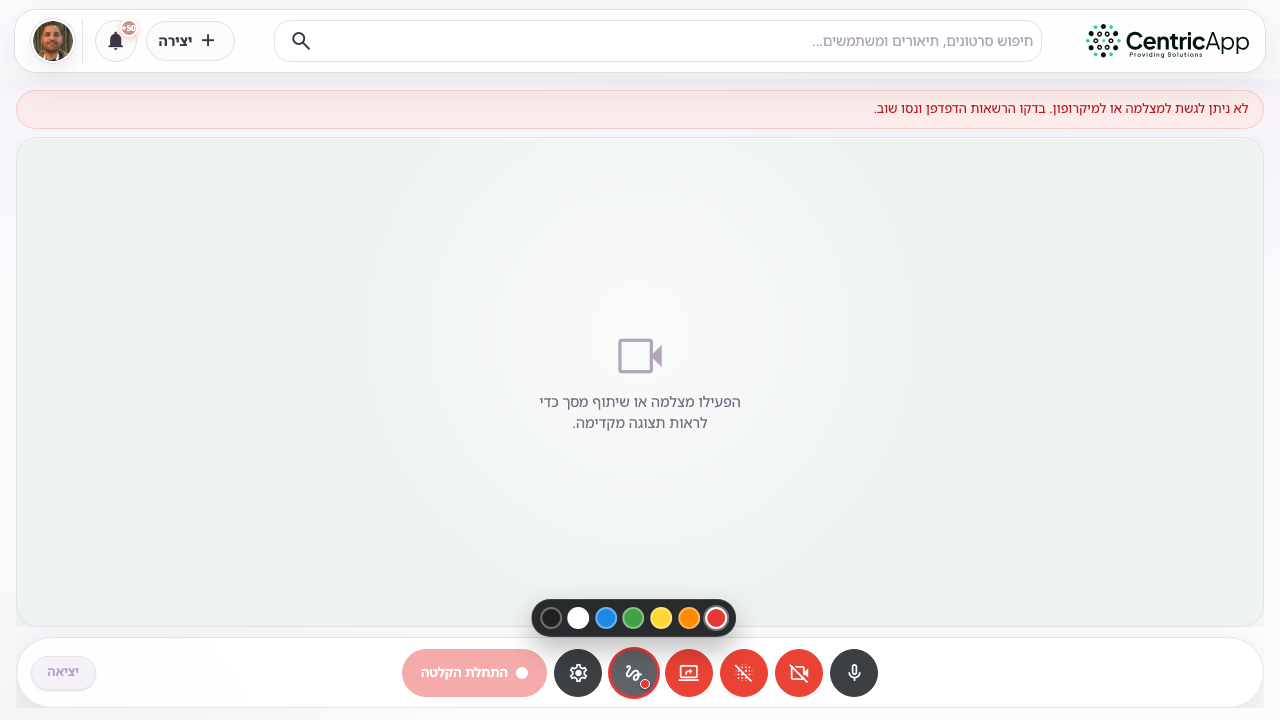
Click Annotate screen (drawing icon). When active, the button shows a colored ring and a color palette appears.
- Draw on the preview with the mouse or touch.
- Pick a color from the strip (red, orange, yellow, green, blue, white, black).
- Click Clear annotations (eraser) to remove all marks.
Annotations are included in the final video — they are composited into the recorded frames while you record.
Recording and saving
- Turn on camera and/or screen share until a preview appears.
- Click Start recording. You can pause and resume during the take.
- Click Stop recording. A saving screen appears while the video is stored.
- After save you are redirected to My videos, where you can edit title, privacy, and more.
See also: My videos, Video settings, Video upload.