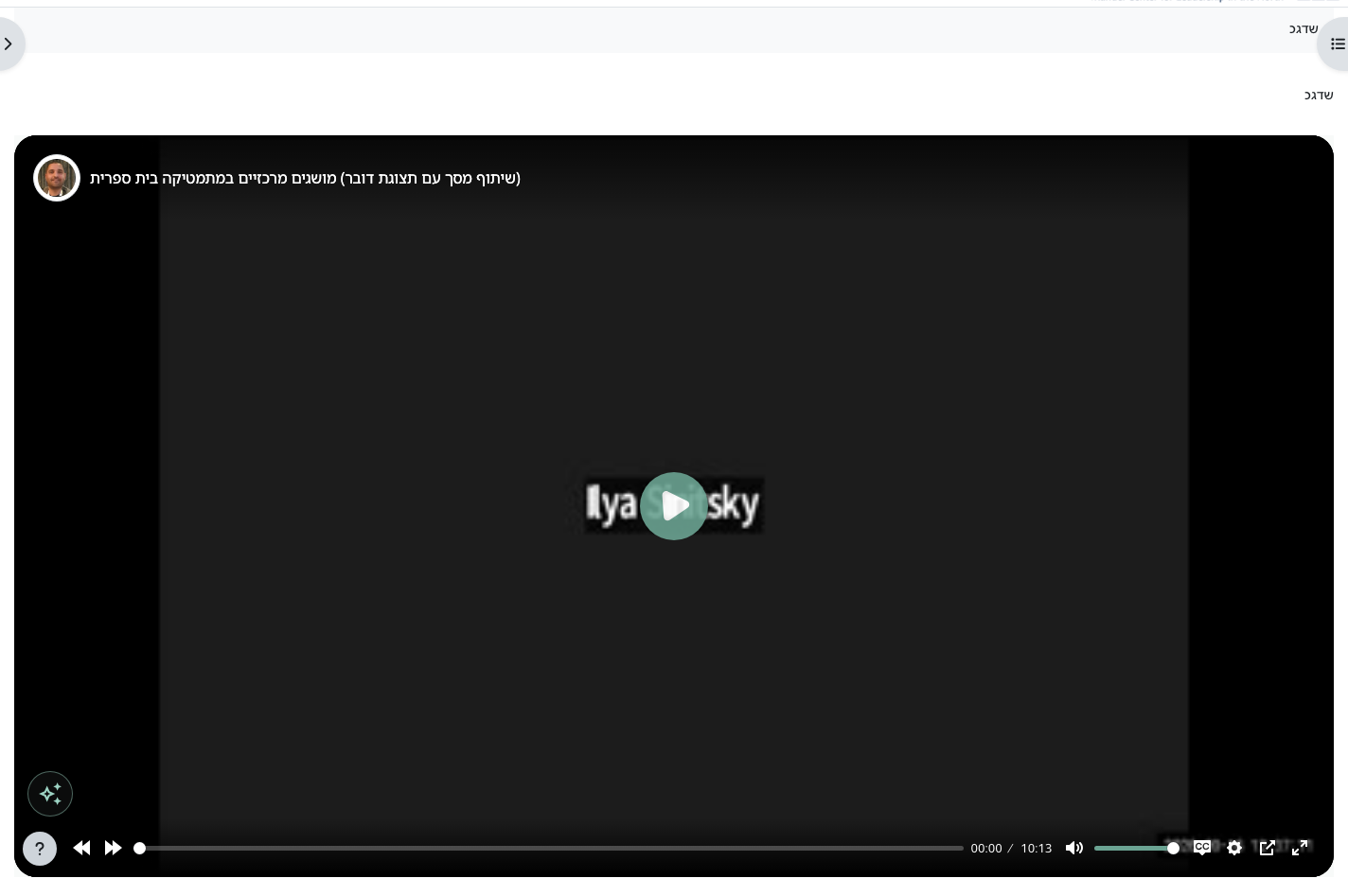
What this does
Embedding is done through the STREAM activity. After you save, students watch the video inside the course, without leaving Moodle.
You can embed an older video that is already in the lecturer’s video list. You do not need to upload it again.
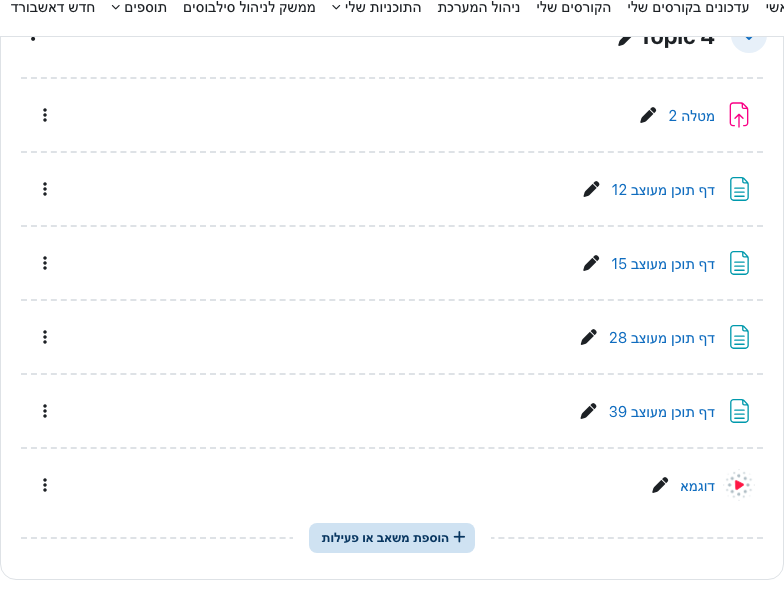
Add the activity to the course
- Open the course in Moodle.
- Turn on Edit mode.
- In the section where the video should appear, click Add an activity or resource.
- Choose STREAM.
- Give the activity a name. Students see this name in the course.
Choose a video that already exists
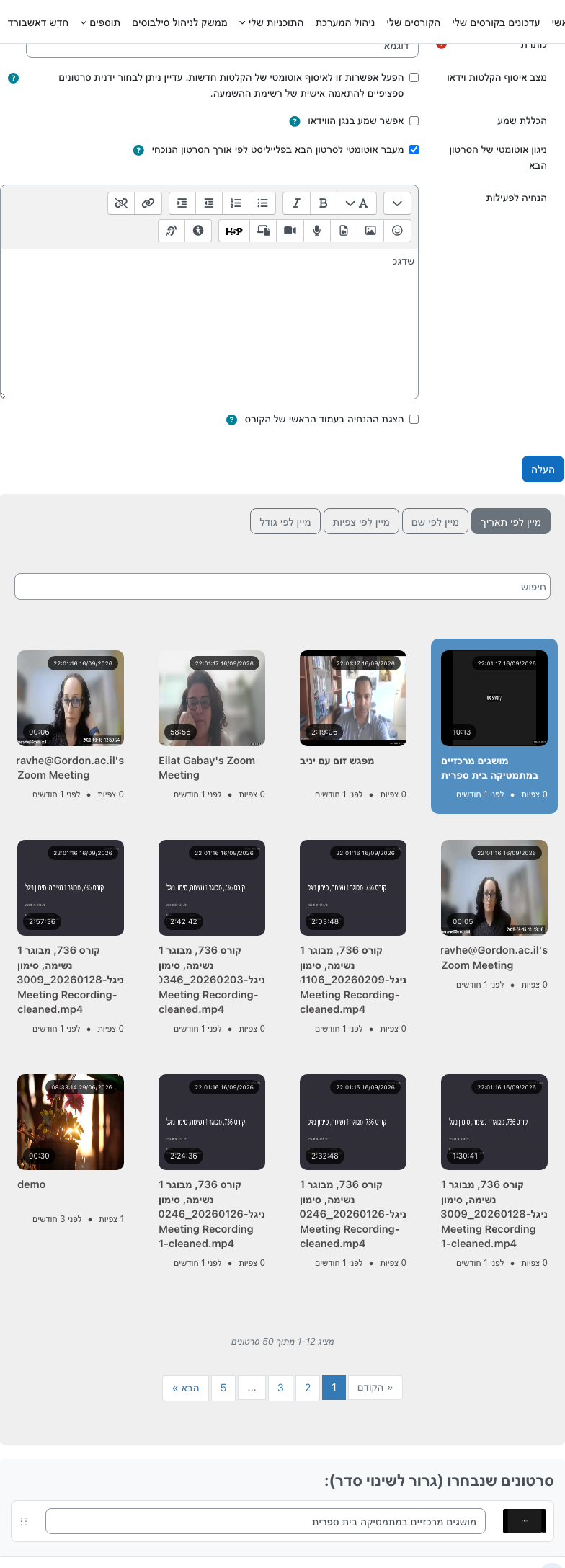
The activity settings page lists your videos in Stream. The list is loaded from the Moodle user’s email address and includes videos that are ready to watch on the matching Stream account, including ones uploaded or recorded earlier.
A video appears in the list when it is:
- In status ready to watch
- Set to privacy public, authentication, or link
A private video, or a video that is still processing, is not available to select.
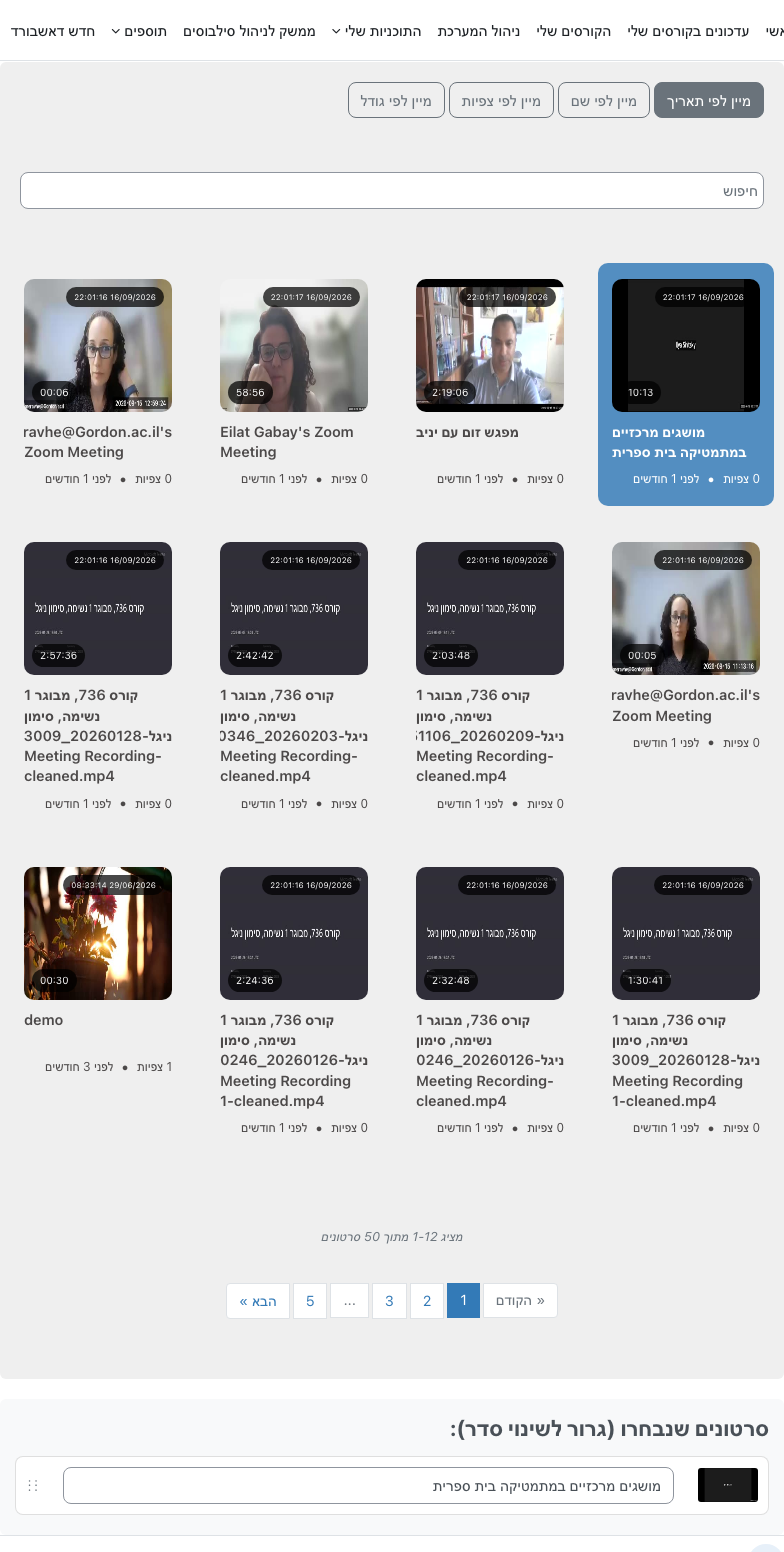
- Find the video. Search by name in the Search field, and sort by date, name, views, or size.
- Click the video card. A selected card is highlighted in blue.
- Click the same card again to remove the selection.
- You can select several videos. Students see them as a playlist inside the same activity.
The upload date is shown on the thumbnail, so older videos stay available to pick.
The Upload button opens a form for a new video. You do not need it when the video is already in the list.
Selected videos
Below the list is Selected videos (drag to reorder):
- Drag the handle to set the playback order.
- You can edit the title shown to students without changing the original title in Stream.

Settings
| Option | What it does |
|---|---|
| Video recordings collection mode | Automatically collect new recordings. Leave it off and pick videos manually. When it is on, you can still choose specific videos. |
| Include audio | Off: the video plays without sound. On: the player includes audio. |
| Autoplay next video | In a playlist, the next video starts when the current one ends. Students can still pick a video from the list. |
| Activity description | Text shown to students above the player. |
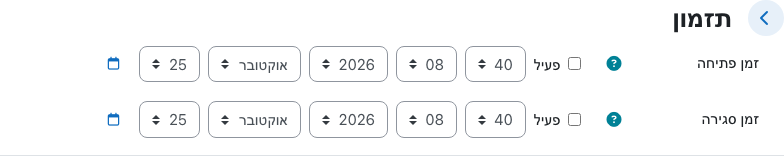
Timing
The Timing section limits when students can open the activity:
- Open time — the activity is unavailable before this time. Check Enable to turn the limit on.
- Close time — after this time, viewing is blocked. Without Enable, the activity stays open.
Save
- Save and display — saves and opens the view page.
- Save and return to course — saves and returns to the activity list.
- Cancel — leaves without saving.
You cannot save the activity without selecting a video, unless collection mode is on.

What the student sees
After saving, the activity appears in the course. Opening it shows the player inside Moodle. If several videos were selected, the student moves between them inside the same activity.